← All courses

Canva for Business

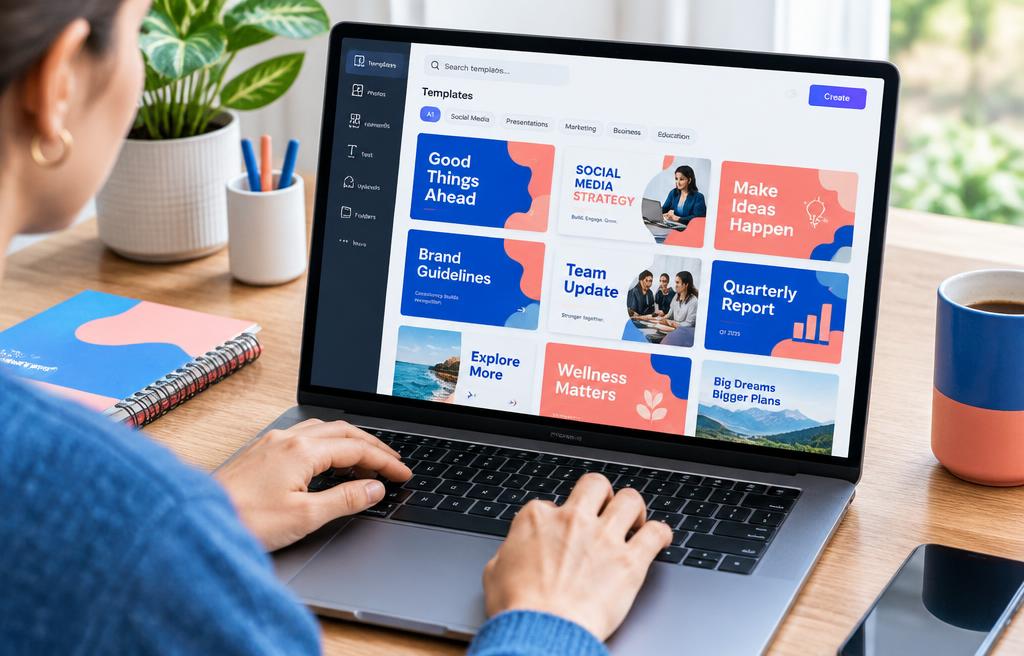
Create professional social posts, presentations, and marketing material fast with Canva.

  • 1 month (4 weeks)
  • 20 topics
  • Final exam
Book a trainer
Canva for Business

Your learning path

4 weeks from start to certificate

  1. 1

    Week 1

    Getting started

  2. 2

    Week 2

    Social & marketing

  3. 3

    Week 3

    Presentations & docs

  4. 4

    Week 4

    Advanced Canva

  5. Finish

    Exam & certificate

Every week

How each week works

Learn

Live class with your trainer

Practice

Guided hands-on exercises

Build

Mini project for your portfolio

Review

Feedback and Q&A

Concept lab

See how the core concepts connect

Follow the path from foundations to real workplace application. Every concept feeds the next project.

1

Week 1

Canva Interface & Navigation

2

Week 1

Establishing Your Brand Kit

3

Week 2

Social Media Content Strategy

4

Week 2

Designing for Key Social Platforms

5

Week 3

Crafting Compelling Presentations

6

Week 3

Interactive Presentation Features

7

Week 4

Advanced Photo Editing & Effects

8

Week 4

Canva AI Tools & Magic Studio

Course curriculum

1

Week 1 · 5 topics · 20 lessons

Getting started

By the end of this week: Learners will establish their Canva workspace, understand brand identity application, and design basic on-brand marketing visuals.

  1. 1.1Canva Interface & Navigation
    • Understanding dashboard layout
    • Template library exploration
    • Uploading media assets
    • Workspace tools overview
  2. 1.2Establishing Your Brand Kit
    • Setting brand colors
    • Uploading brand fonts
    • Adding logos & elements
    • Creating multiple brand kits
  3. 1.3Design Principles for Business
    • Importance of visual hierarchy
    • Effective use of white space
    • Color psychology basics
    • Typography selection for impact
  4. 1.4Creating Basic Marketing Visuals
    • Designing a compelling flyer
    • Simple banner ad creation
    • Event invitation design
    • Product announcement graphic
  5. 1.5Sharing & Exporting Your Designs
    • Downloading various formats
    • Sharing for review
    • Embedding designs
    • Canva publish options
Week 1
Getting started
Canva Interface & Navigation
Establishing Your Brand Kit
Design Principles for Business
Creating Basic Marketing Visuals
Sharing & Exporting Your Designs

Hands-on project

Brand Kit & Social Post

2

Week 2 · 5 topics · 20 lessons

Social & marketing

By the end of this week: Learners will create engaging social media content, develop consistent marketing collateral, and schedule posts efficiently.

  1. 2.1Social Media Content Strategy
    • Platform-specific content needs
    • Engaging audience with visuals
    • Content calendar planning
    • Tracking social trends
  2. 2.2Designing for Key Social Platforms
    • Instagram story/post design
    • Facebook ad/cover creation
    • LinkedIn professional graphics
    • Pinterest pin design
  3. 2.3Video & Animation for Social
    • Creating short social videos
    • Adding animated elements
    • Using video templates
    • Adding background music
  4. 2.4Batch Content Creation & Automation
    • Using Magic Switch for resizing
    • Bulk creation with Brand Hub
    • Content Planner scheduling
    • Team templates for consistency
  5. 2.5Email Marketing & Blog Graphics
    • Designing email headers
    • Call-to-action button creation
    • Blog post featured images
    • Infographics for content
Week 2
Social & marketing
Social Media Content Strategy
Designing for Key Social Platforms
Video & Animation for Social
Batch Content Creation & Automation
Email Marketing & Blog Graphics

Hands-on project

Social Media Campaign Assets

3

Week 3 · 5 topics · 20 lessons

Presentations & docs

By the end of this week: Learners will design professional presentations, create impactful business documents, and collaborate effectively on projects.

  1. 3.1Crafting Compelling Presentations
    • Structuring presentation flow
    • Choosing the right template
    • Visual storytelling techniques
    • Adding transitions & animations
  2. 3.2Interactive Presentation Features
    • Canva Live for audience Q&A
    • Recording presentations
    • Using speaker notes
    • Embedding external media
  3. 3.3Designing Professional Documents
    • Resumes and cover letters
    • Reports and white papers
    • Invoices and proposals
    • Brochures and catalogs
  4. 3.4Team Collaboration & Workflows
    • Sharing designs with teams
    • Commenting and feedback
    • Version history management
    • Assigning design roles
  5. 3.5Print-Ready Designs & Best Practices
    • Understanding bleed and trim
    • CMYK vs. RGB explained
    • High-resolution file setup
    • Canva Print services
Week 3
Presentations & docs
Crafting Compelling Presentations
Interactive Presentation Features
Designing Professional Documents
Team Collaboration & Workflows
Print-Ready Designs & Best Practices

Hands-on project

Business Proposal & Presentation

4

Week 4 · 5 topics · 20 lessons

Advanced Canva

By the end of this week: Learners will leverage advanced features, utilize AI tools for efficiency, and integrate Canva with other business applications.

  1. 4.1Advanced Photo Editing & Effects
    • Background Remover tool
    • Photo effects and filters
    • Adjusting image properties
    • Using Smart Mockups
  2. 4.2Canva AI Tools & Magic Studio
    • Magic Write for text generation
    • Magic Design from prompt
    • Magic Edit and Erase
    • Magic Morph and Grab
  3. 4.3Custom Elements & Brand Consistency
    • Creating custom graphics
    • Saving brand assets
    • Using Brand Templates
    • Maintaining brand guidelines
  4. 4.4Integrating Canva with Business Tools
    • Connecting social media accounts
    • Integrating with Google Drive
    • Using embedded links
    • Canva Apps marketplace
  5. 4.5Canva Pro & Enterprise Features
    • Understanding Pro benefits
    • Team features in depth
    • Content approval workflows
    • Custom fonts & brand controls
Week 4
Advanced Canva
Advanced Photo Editing & Effects
Canva AI Tools & Magic Studio
Custom Elements & Brand Consistency
Integrating Canva with Business Tools
Canva Pro & Enterprise Features

Hands-on project

Personalized Brand Assets

Final exam & certificate

Finish the 4 weeks, then take the online exam. Score 70% or more to pass.

Job-ready syllabus

Learn it. Build it. Explain it. Use it.

The syllabus goes beyond watching lessons. You practice the tasks employers expect, produce evidence of your skills, and prepare to discuss your work clearly.

Workplace skills

Apply Canva Interface & Navigation, Establishing Your Brand Kit, Design Principles for Business, Creating Basic Marketing Visuals in guided business scenarios.

Portfolio proof

Complete 4 practical projects, including Brand Kit & Social Post.

Professional practice

Present your work, respond to feedback, document decisions, and improve the final result.

Interview readiness

Review common role questions and explain your process, tools, trade-offs, and project outcomes.

Your completion pack

Weekly projects, trainer feedback, final assessment, and a certificate you can add to your résumé and LinkedIn profile.

Why learn from us?

Six reasons students pick M - IT Solutions

One-month programs built around live teaching, real projects and support that actually shows up.

Live online classes

Learn with a real instructor in real time — not pre-recorded videos you watch alone.

Hands-on projects

Every week ends with practical work you can show employers on day one.

1-on-1 trainer time

Stuck or want to go deeper? Book private sessions with a trainer whenever you need.

A real learning area

Lessons, progress tracking and exams all live in your account, on any device.

Trusted by companies

We train individuals and whole teams — from small businesses to enterprise programs.

Verified & supported

Verified accounts, real certificates and a support team that answers when you write.

1000+ learners trainedLive, instructor-ledProject-based every week
Home